Save Recipes from Anywhere: Every Import Method Forktastic Supports
Five recipe import methods compared — and a practical migration workflow for moving 200 recipes in over a weekend evening.
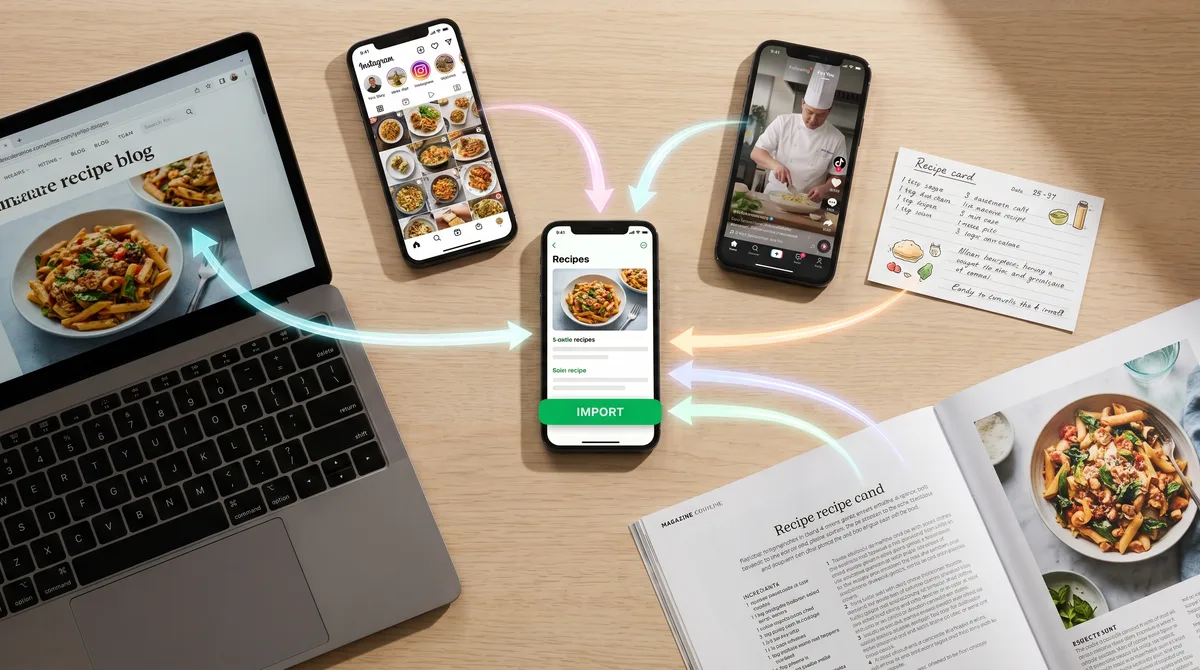
The first time you stop using a recipe app, it's almost always because importing recipes into it became friction. The single biggest predictor of whether someone's recipe library will keep growing is whether saving the next recipe takes two taps or twenty. This guide covers every import method Forktastic supports — five of them — and which one fits which kind of source.
Method 1 — URL import (the most common case)
If the recipe lives on a website, paste the URL. Forktastic's URL importer pulls the title, ingredients, steps, photo, and metadata from the structured data the recipe site already publishes (the same data Google uses to render rich recipe cards). Works on essentially every major food blog. The full URL-import guide covers the edge cases — paywalled sites, sites that bury the recipe in a long lifestyle preamble, and sites with non-standard markup.
Method 2 — Paste-text capture (when there's no URL)
For text you've already copied — from an email, a messaging app, a screenshot's OCR result, a TikTok caption — paste the raw text into Forktastic and the AI parser turns it into a structured recipe. This is the fastest way to capture something a friend texted you. Step-by-step.
Method 3 — Photo / OCR (for handwritten and printed sources)
The most underrated import method is the one for things that don't live on the web at all. Take a photo of a recipe card, a page from a cookbook, a printout taped to your grandmother's fridge — Forktastic OCRs the text and AI-parses it into a structured recipe. The full walkthrough for digitizing handwritten family recipes goes deep on the practical workflow (lighting, multi-page recipes, capturing the stories alongside the recipe).
Photo capture is also the right answer for screenshots of Instagram Reels or TikTok videos with on-screen text. Instagram-specific workflow; TikTok-specific workflow.
Method 4 — Paprika bulk ZIP migration (for people moving in)
Forktastic is the only modern recipe app that supports direct bulk import from a .paprikarecipes export ZIP file. Export your entire Paprika library, drop the ZIP into Forktastic, and the importer ingests every recipe at once with ingredients, steps, photos, and notes preserved. The five-minute migration guide walks through it end to end. If you've been on Paprika for years and have hundreds of recipes, this is the only realistic way to move without losing everything.
Method 5 — Safari extension on iOS (save while browsing)
On iPhone and iPad, the Forktastic Safari extension adds a "Save to Forktastic" button to any recipe page. You see a recipe you like while you're browsing, tap save, and it's in your library without leaving Safari. No copying URLs, no switching apps. Extension setup and usage.
What about Pinterest?
Pinterest is a recipe-discovery layer over the same recipe websites you'd import from directly. The right workflow is: find recipe on Pinterest → click through to the source website → use URL import. Importing the Pinterest pin itself isn't useful because the pin doesn't carry the recipe data — it just links to the source. The full Pinterest workflow.
What about photo-based ingredient detection?
Photo Match — Forktastic's Pro feature for AI ingredient detection — is technically not an import method, it's a search method. Take a photo of what's in your fridge, and Photo Match identifies the ingredients and surfaces recipes from your library that use them. It's the answer to "what can I make tonight" rather than "save this recipe for later." How Photo Match works.
Picking the right method for a source
- Recipe on a food blog → URL import
- Friend texted you the recipe → Paste-text
- Recipe written on a card or in a cookbook → Photo OCR
- Recipe is an Instagram Reel or TikTok video → Screenshot + Photo OCR
- Migrating from Paprika → Bulk ZIP import
- You're browsing in Safari and saw something → Safari extension
What this looks like for a real migration
If you're starting from a sizable existing library — say 200 recipes across a Paprika app, a few Instagram saves, and a stack of family recipe cards — here's the realistic order:
- Run the Paprika ZIP import first. That handles the bulk of the library in one shot.
- Spend an evening photographing the family recipe cards and OCRing them in. Group them into a "Family" cookbook so they're separate from web-sourced recipes.
- Open Instagram and Forktastic side by side, screenshot the dozen recipes you've been saving, OCR them in.
- Going forward, use the Safari extension for everything you discover while browsing.
The whole migration takes a weekend evening. After that, the library compounds because saving the next recipe takes seconds instead of minutes.
Where to go from here
The other 49 posts in the Forktastic launch run cover specific workflows in depth. If you cook with other people, jump to family recipe management. If you want to know what the cooking experience looks like once recipes are in, jump to voice cook mode. And if you're still comparing apps, the honest 2026 comparison is here.