How to Save Recipes from Any Website to Your Phone
URL import in Forktastic — how it works on every major food blog, plus the 5% of edge cases and how to handle them.
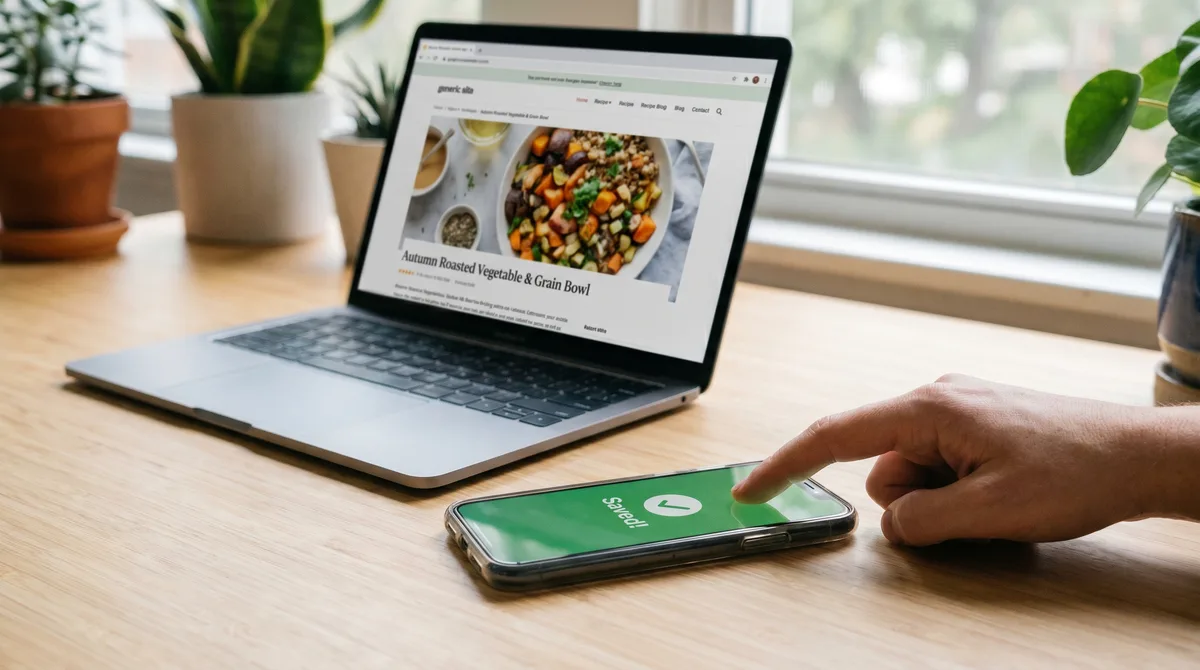
The single most common way you'll add recipes to your library is by importing them from food blogs. This walkthrough covers exactly how that works in Forktastic, what edge cases to expect, and how to handle them.
The fast path — paste a URL
Open Forktastic → tap the + → Import from URL → paste the recipe URL → tap Save. Forktastic fetches the page, parses the structured recipe data (the JSON-LD or microdata most food blogs already publish for Google's rich recipe cards), and imports title, ingredients, steps, photo, total time, servings, and any nutrition data the site published.
On most major food blogs — Serious Eats, NYT Cooking, Bon Appetit, Food52, Smitten Kitchen, Half Baked Harvest, all the recipe sites you've heard of — this works on the first try in under three seconds.
Even faster — Safari extension (iOS)
On iPhone and iPad, install the Forktastic Safari extension. Now any time you're reading a recipe in Safari, tap the share icon → Forktastic → Save. The recipe imports without leaving Safari. Full Safari extension walkthrough.
When URL import doesn't work cleanly
About 95% of the time URL import is clean. The 5% where it gets messy:
Sites with a long lifestyle preamble. Some food blogs put 2,000 words of story before the actual recipe. Forktastic's parser pulls from the structured recipe data, not the prose, so the story stays on the original site — but if the site forgot to mark up the recipe with structured data, the importer may grab the wrong content. The fix is paste-text: copy the actual ingredients and steps from the article, paste into Forktastic, AI parses it into a structured recipe.
Paywalled sites. If the recipe lives behind a paywall and you don't have a subscription, the importer can only see what's public. Subscribe to the site or copy-paste the visible portion after logging in.
Non-recipe pages. If you accidentally paste a category page, an author page, or a roundup post, the importer reports "no recipe found." Pick the specific recipe URL from the page and re-try.
Recipes embedded in YouTube descriptions. URL import doesn't watch videos. For recipes that live in a video, take a screenshot of the description and use photo OCR (see method 3).
What gets imported
- Title — exact text
- Photo — the recipe's hero image (re-uploaded to Forktastic's image storage so the recipe still works if the original site goes down)
- Ingredients — structured list with quantities
- Steps — in order
- Times — prep, cook, total when published
- Servings — when published
- Nutrition — when published
- Source URL — preserved, so you can always return to the original
What doesn't get imported
The lifestyle preamble — the author's story about their grandmother's kitchen — does not get imported. That stays on the source site. The "Why this works" paragraphs from sites like Serious Eats also stay on the source site. You can always click the source URL in Forktastic to read them.
This is intentional. The blog is the long-form home for the story; Forktastic is the home for the recipe.
Bulk URL import?
Forktastic doesn't currently support pasting a list of URLs at once. Each URL imports individually. For users moving from another recipe app, the right path is the dedicated bulk importers — Paprika ZIP import or paste-text bulk via the AI parser.
Where to go next
For the full set of import methods, the import pillar guide. For Instagram or TikTok captures, Instagram walkthrough and TikTok walkthrough. For handwritten or printed sources, the photo OCR guide.