How to Connect Forktastic to Claude with MCP
Step-by-step Claude MCP setup for Forktastic — issue a PAT, add the server to your Claude config, build a recipe agent.
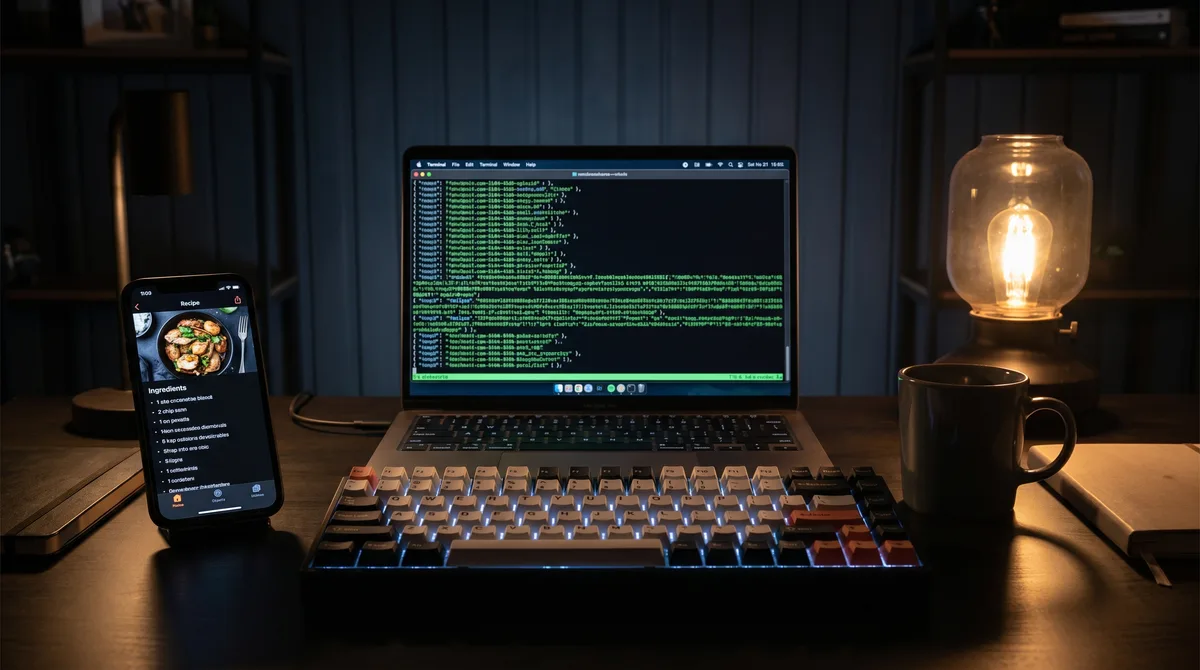
This walkthrough connects your Forktastic recipe library to Claude — Claude Desktop, Claude Code, or anywhere that supports MCP. Once connected, every Claude session has read access to your recipes, cookbooks, and family-shared content. You can ask Claude to plan your week, find recipes by ingredient, generate shopping lists in any format you want, or build agents that work with your library.
The prerequisites
- Forktastic Pro (MCP access is gated behind the Pro entitlement).
- A Claude client that supports MCP — Claude Desktop, Claude Code, or any compatible client.
- Five minutes for setup.
Step 1 — Issue a Personal Access Token
In Forktastic, go to Settings → Personal Access Tokens → New Token. Give it a label ("Claude Desktop", "Claude Code", etc) so you know which client it's for. The token is shown once — copy it immediately. Full PAT walkthrough.
Step 2 — Add the server to your Claude client
For Claude Desktop, open the config file at ~/Library/Application Support/Claude/claude_desktop_config.json (macOS) or the equivalent path on your platform. Add a server entry:
{
  "mcpServers": {
    "forktastic": {
      "command": "npx",
      "args": ["-y", "@modelcontextprotocol/server-fetch"],
      "env": {
        "MCP_URL": "https://mcp.forktastic.com/rpc",
        "MCP_TOKEN": "your-PAT-here"
      }
    }
  }
}
(Exact config syntax may evolve with Claude Desktop updates — check the current Claude Desktop MCP docs if this snippet doesn't load. The principle is the same: add Forktastic's MCP server with your PAT.)
Step 3 — Restart Claude
Quit Claude entirely and reopen. The Forktastic tools should now appear in your tool palette. Test with a simple question: "List my Forktastic cookbooks." Claude should respond with your actual cookbook list.
The seven tools you now have
- search_recipes — full-text search across your library
- get_recipe — fetch a specific recipe by ID
- list_cookbooks — your cookbooks
- search_cookbooks — search cookbooks by name
- get_cookbook — fetch a cookbook with its recipes
- get_trending — popular recipes (across the platform, not just yours)
- get_family — your family group info (members, shared cookbooks)
Full tool reference and example queries.
What you can do once it's connected
Ask Claude:
- "Plan a week of dinners from my library using what's in my fridge. I have chicken, broccoli, and rice."
- "Find the three slow-cooker recipes I've used the most in the last quarter."
- "Generate a Markdown shopping list for the recipes I have planned this week."
- "Find recipes in my library that don't have any allergen warnings for my niece's nut allergy."
Each of these uses the MCP tools to read from your actual library, not from Claude's training data.
What it can't do
The MCP server is read-only. Claude can't create, edit, or delete recipes through it. This is a deliberate scope decision — write access through agentic tooling has a much higher risk surface, and the trust model isn't ready yet.
Troubleshooting
If the tools don't appear after restart, check:
- The PAT is valid (re-issue if you're not sure).
- You're on Forktastic Pro (PATs require Pro).
- The Claude config file is syntactically valid JSON.
- Restart Claude completely, not just close the window.
Where to go next
For the tool reference, 7 MCP tools walkthrough. For Cursor instead of Claude, Cursor setup. For the MCP pillar overview, MCP pillar guide.