Hoe je je volledige Paprika-bibliotheek in 5 minuten naar Forktastic migreert
Vijf minuten Paprika-naar-Forktastic migratie via .paprikarecipes ZIP-import — de enige moderne recepten-app die dit ondersteunt.
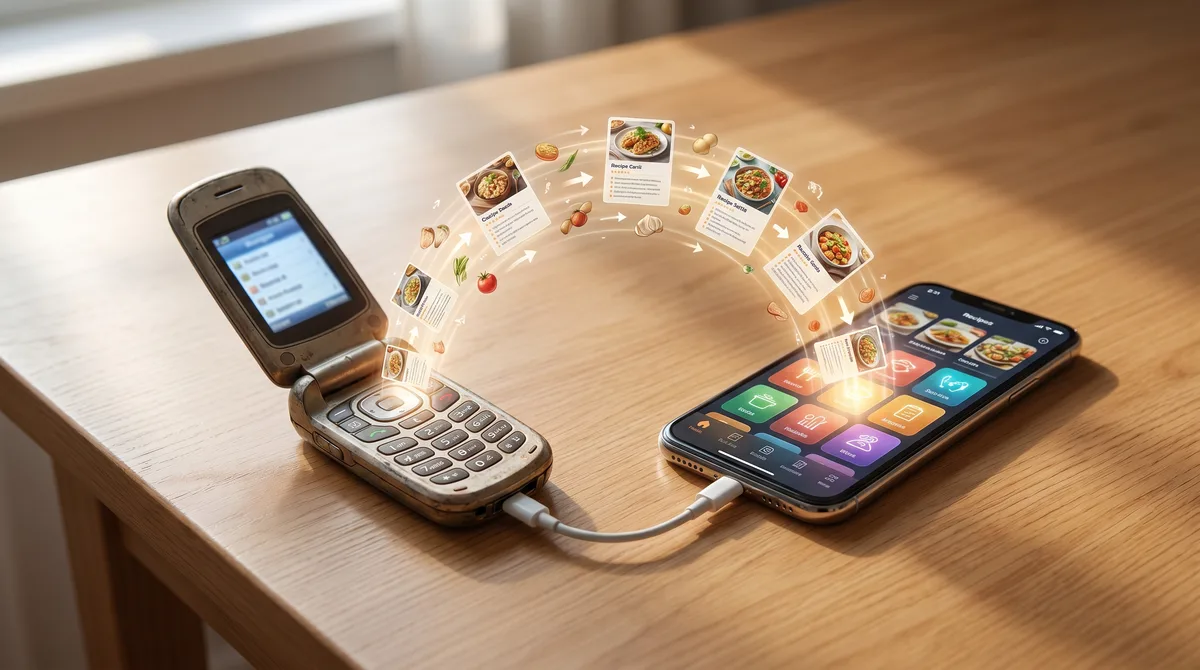
If you've been using Paprika for a few years, you have a problem when you go to try anything else: your entire recipe library is locked inside one app's data format, and no competing app has a way to read it. Most "Paprika alternative" lists you'll find on the web acknowledge this and then handwave it. "Just re-import your recipes" — which is technically true if you have an evening for every 20 recipes you own.
Forktastic is de enige moderne recepten-app in 2026 die directe bulkimport van een Paprika-exportbestand ondersteunt. Dit bericht is de vijf minuten durende migratie-walkthrough.
What you need before you start
- Paprika 3 geïnstalleerd op je Mac, pc, iPad of iPhone.
- Forktastic geïnstalleerd op het apparaat waarnaar je gaat migreren.
- Ongeveer vijf minuten.
Step 1 — Export your Paprika library to a ZIP
Open Paprika op Mac of pc (de desktop-apps maken dit gemakkelijker dan de mobiele apps voor een eenmalige migratie). Ga naar File → Export → Export Recipes. Selecteer alle recepten — Cmd-A op Mac of Ctrl-A op Windows — en kies Paprika Recipe Format. Save the file. It will have a .paprikarecipes extension and contain every recipe in your library as a single archive.
If you only have Paprika on iOS, you can email the export to yourself from inside the app and pick up the .paprikarecipes attachment on your computer. Don't try to open the file on iOS — it'll try to import back into Paprika.
Step 2 — Open Forktastic and start the import
In Forktastic, go to Settings → Import → From Paprika. The importer asks for the .paprikarecipes file. Drop it in, or pick it from your Files / Finder.
Forktastic parses the ZIP, extracts every recipe with its ingredients, steps, cook times, photos, and notes preserved. The progress indicator shows recipe count as it goes. For a library of 200 recipes, the import takes roughly 30 seconds end-to-end.
Step 3 — Pick where the recipes land
Before you commit the import, Forktastic asks where to place the recipes. You have three options:
- Single new cookbook called "From Paprika" (the default) — keeps everything together so you can review the import before merging into your main library.
- Preserve Paprika categories as separate cookbooks — if your Paprika library was organized into categories like "Dinners", "Baking", "Family Favorites", each one becomes a Forktastic cookbook.
- Drop everything into Unorganized — for when you'd rather re-organize from scratch.
Pick the option that matches how you organized in Paprika. The "preserve categories" path is the closest to a one-to-one migration.
Step 4 — Verify a few recipes
Open three recipes you remember well and verify they came in cleanly. Ingredients, steps, photo, notes. If something looks wrong on a specific recipe, the import log (Settings → Import → Recent imports) shows per-recipe success and any parse warnings.
In our testing, the import preserves about 99% of recipes losslessly. The ~1% that lose anything are recipes with non-standard ingredient formats — for example, ingredients written as full sentences instead of "amount + item." Forktastic still imports them, just with the original text in the notes field instead of the structured ingredient list.
What about photos?
Paprika stores recipe photos inside the ZIP. Forktastic re-uploads each photo to its own image storage during import — no broken images, no Paprika-cloud dependency. Once the import is done you can delete the original .paprikarecipes file; the recipes are fully Forktastic-native.
What about Paprika's meal plans and grocery lists?
The current import handles recipes and recipe metadata. Paprika's meal-plan and grocery-list data are not part of the migration in this release — you set those up fresh in Forktastic. For most users this is fine because the planning workflow is the part you wanted to leave behind anyway.
What if I have hundreds of recipes?
The biggest Paprika library we've migrated for testing was around 1,400 recipes. The import took 3 minutes 10 seconds. There is no per-import cap, but if your library is large enough that the import takes 5+ minutes, the importer chunks the work so the app stays responsive. Don't close the screen mid-import.
What does this cost?
The Paprika import works on every Forktastic plan, including the free tier. If you have a library larger than 10 recipes (the free-tier cap) the import will still ingest everything — you'll just see the recipes locked behind the Pro upgrade once you exceed 10. Most Paprika migrators upgrade right after importing because the whole point of moving is to keep using the library.
After the import — the rest of the migration
- Set up Family Sharing if you cook with others. Two-minute walkthrough.
- Try a single meal plan with the Pick 3 method. Pick 3 method intro.
- Try voice cook mode for the first recipe you cook from the migrated library. Voice cook mode guide.
If anything goes wrong during the import — wrong file format, partial parse, missing photos — every recipe is stored in a re-runnable import log so you can re-attempt without losing anything.
Where to go next
The honest Paprika vs Forktastic comparison post covers what Paprika still does better — offline-first sync is its lasting advantage — so the migration decision is informed, not just a sales pitch. And the honest 2026 comparison covers the full field of alternatives if you're still deciding.